Setting up Jetson Orin Nano Dev Kit
Nvidia guide on setup Jetson Orin Nano Dev Kit is here:https://www.jetson-ai-lab.com/initial_setup_jon.htmlIf you follow the guide and are stuck or you have a lot of questions. Welcome!
Nvidia SDK Manager
Windows 11/Wsl 2
I mainly use Windows 11 as my work system. Wsl 2 is a fantastic tool for cross platform development. My first approach was to set up everything from the Wsl2. I tried both the UI (yes, wsl2 can run Linux apps in the UI mode) and the command line. Both didn’t work out. The main problem is that the Sdk manager sets up Jetson via usb connection. You can pass through a USB device to wsl2 using opensource tools. However, during the setup process SDK Manager restarts the device multiple times (and I guess in a different mode) so the device has to be automatically passed through each time to wsl2. And it doesn’t during one of the cycles. You still can use Windows 11 to write out flash card. But my goal was to use an NVMe drive. So, here it comes - Ubuntu.
Ubuntu 24.04
Nvidia SDK Manager despite saying so on their official page still doesn’t support Ubuntu 24.04. However there is a way how to trick SDK Manager to think he is running under Ubuntu 22.04: https://forums.developer.nvidia.com/t/ubuntu-24-04-still-not-supported-as-host-system/309078
For future seekers, the “fix” I’ve found is to change both “/etc/os-release” and “/etc/lsb-release” temporarly to “fool” the SDK manager into thinking it’s running Ubuntu 22.04, so that it correctly pulls packages from the jammy repos instead of noble.
Just in case, link to setup Nvidia SDK Manager: https://developer.nvidia.com/sdk-manager
Steps:
- Update /etc/os-release Change VERSION_ID to “22.04”
- Update /etc/lsb-release Change DISTRIB_RELEASE to “22.04”
Without tricking the SDK Manager will not let you to setup the device:
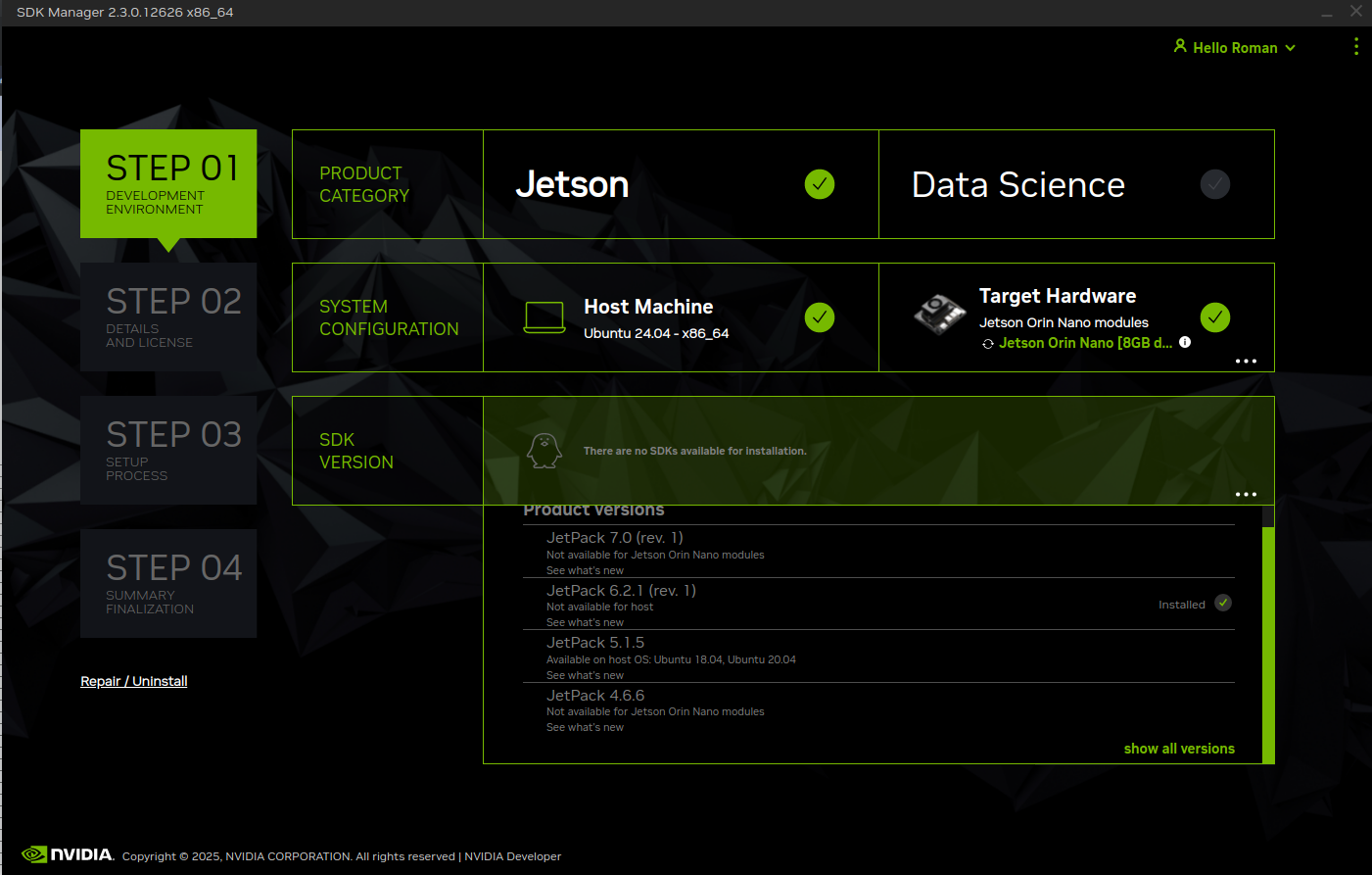
As you can see all the sdk versions are disabled.
After doing steps:

Jetson Orin Nano Recovery mode
First things first, the device need to be setup into the recovery mode:https://forums.developer.nvidia.com/t/how-to-get-into-recovery-mode/250525
Steps:
- Disconnect power supply from the Jetson nano
- Setup jumper in the front header between “FCC REC” and “GND”
- Connect Jetson to your host PC using USB-C cable.
- Power up Jetson Orin Nano
- In your console run this command to check that device is connected:
lsusb | grep 7523
You should get something like: Bus 003 Device 006: ID 0955:7523 NVIDIA Corp. APX
List of over Jetson devices and their ids here: https://docs.nvidia.com/jetson/archives/r35.2.1/DeveloperGuide/text/IN/QuickStart.html#jetson-modules-and-configurations
SDK manager should show you connected device:
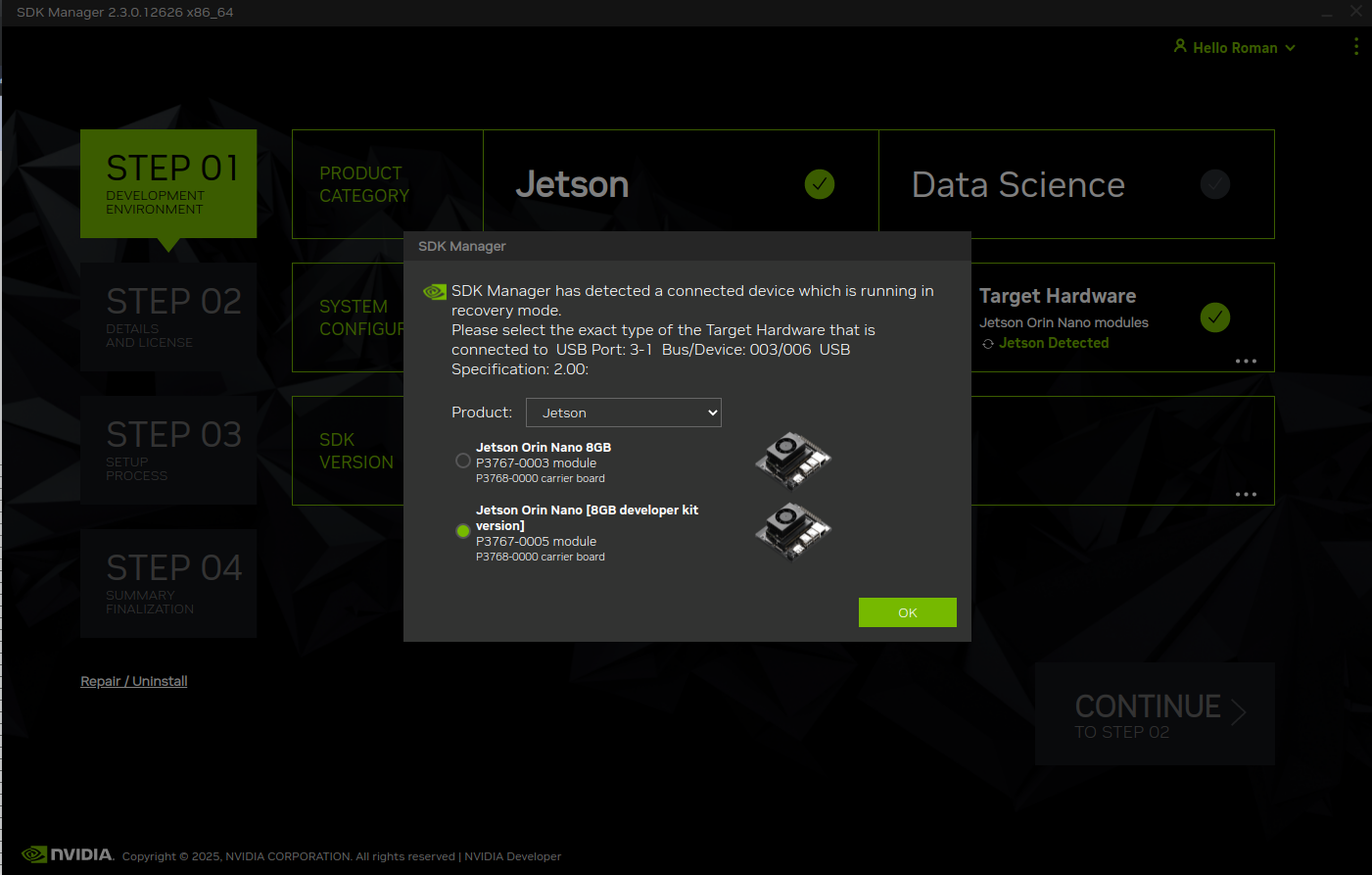
As I am using a dev kit, so I chose the Dev Kit device.
I’ve decided to set up everything aside from Computer Vision inside Host SDK Components (it fails installation because of the dependency of VPI3 and Nvidia already updated their documentation to VPI4). Well. I’m learning a new system, so I’m not sure what I may need:
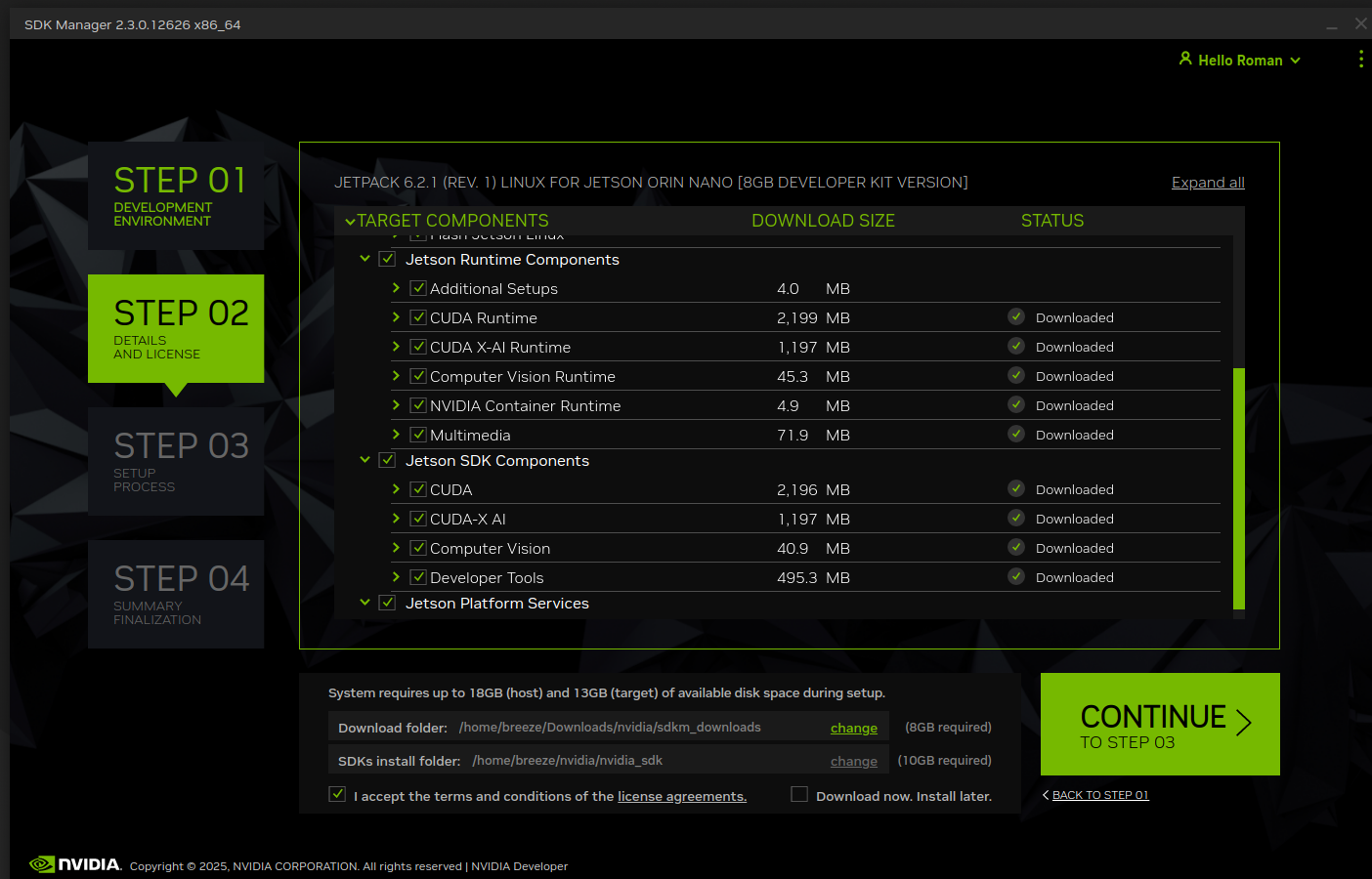
And as I stated above remove checkbox from Computer Vision:
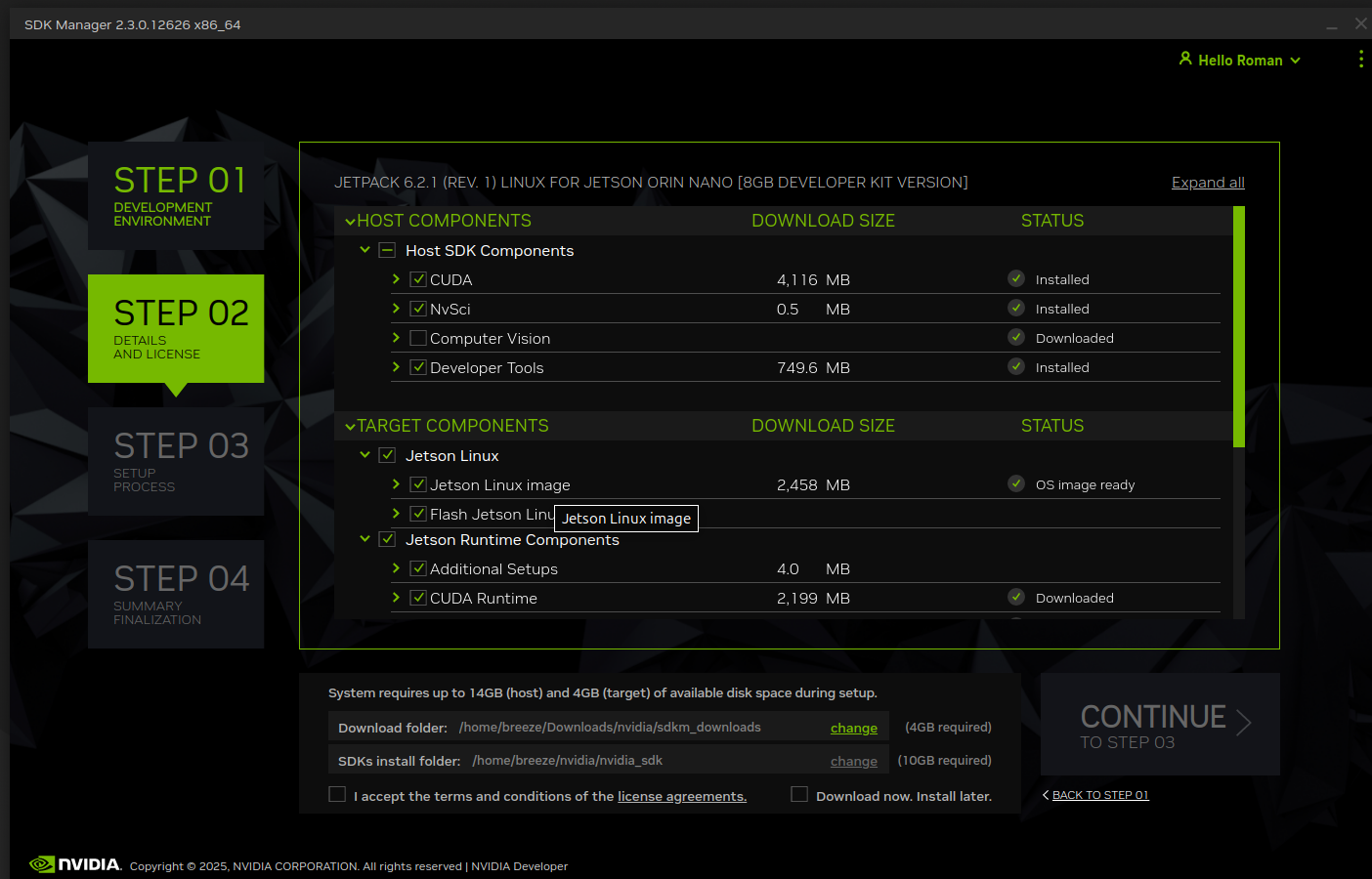
Don’t forget to accept the terms and conditions.
On the next screen don’t forget to choose your NVMe drive and you can choose either runtime or pre-config to setup user/password:
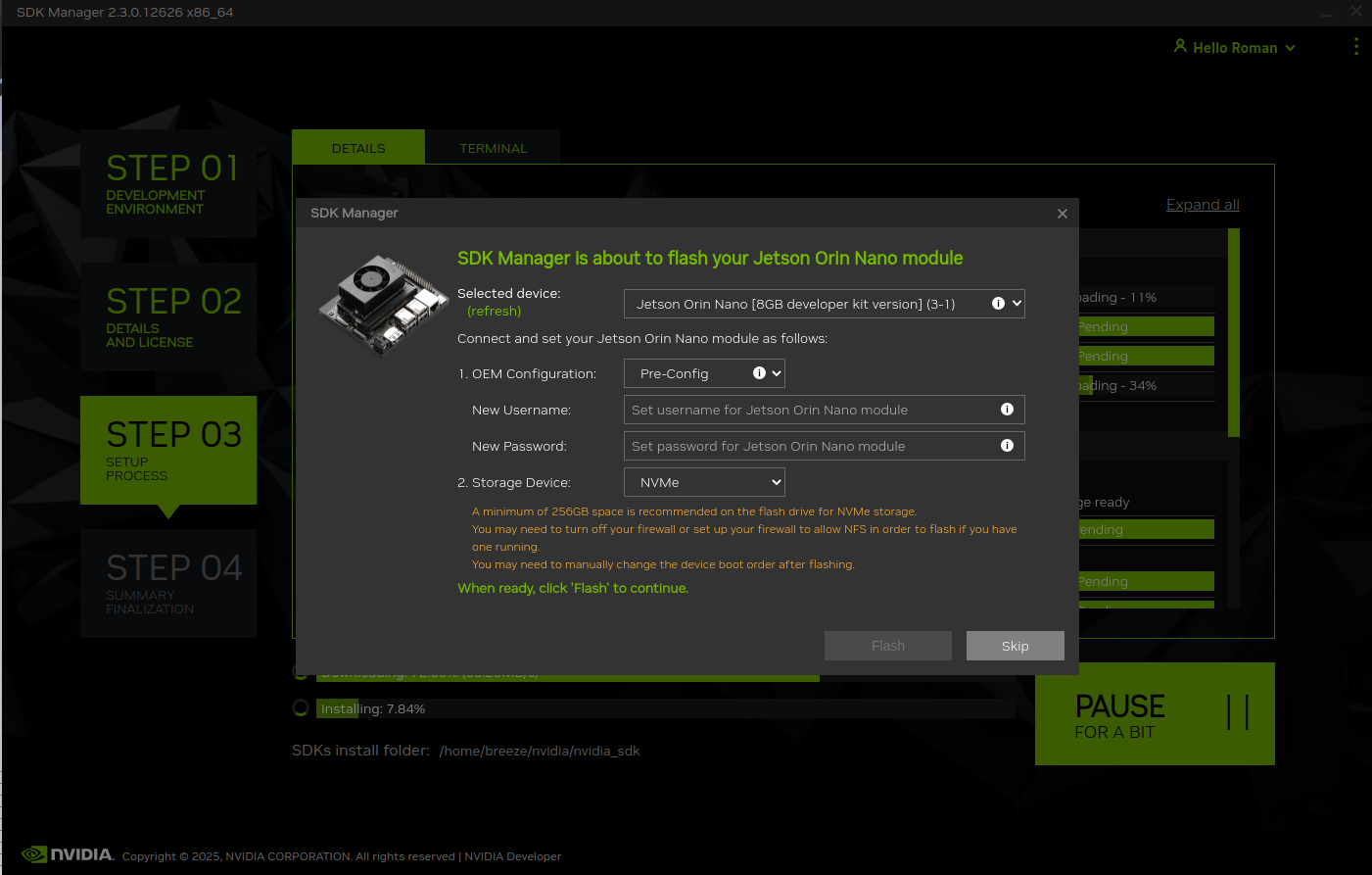
After you choose either options hit flash, sit tight and have your fingers crossed 🙂
The process takes around 20 min or so to complete.
During the process you can notice that usb device (Jetson) being disconnected and connected back multiple times.
Once the process is complete your Jetson Orin Nano should automatically boot to Ubuntu. Wait for the initial setup process to finish. (Till you see the usual Ubuntu log in screen).On the host machine SDK Manager will show you this screen:
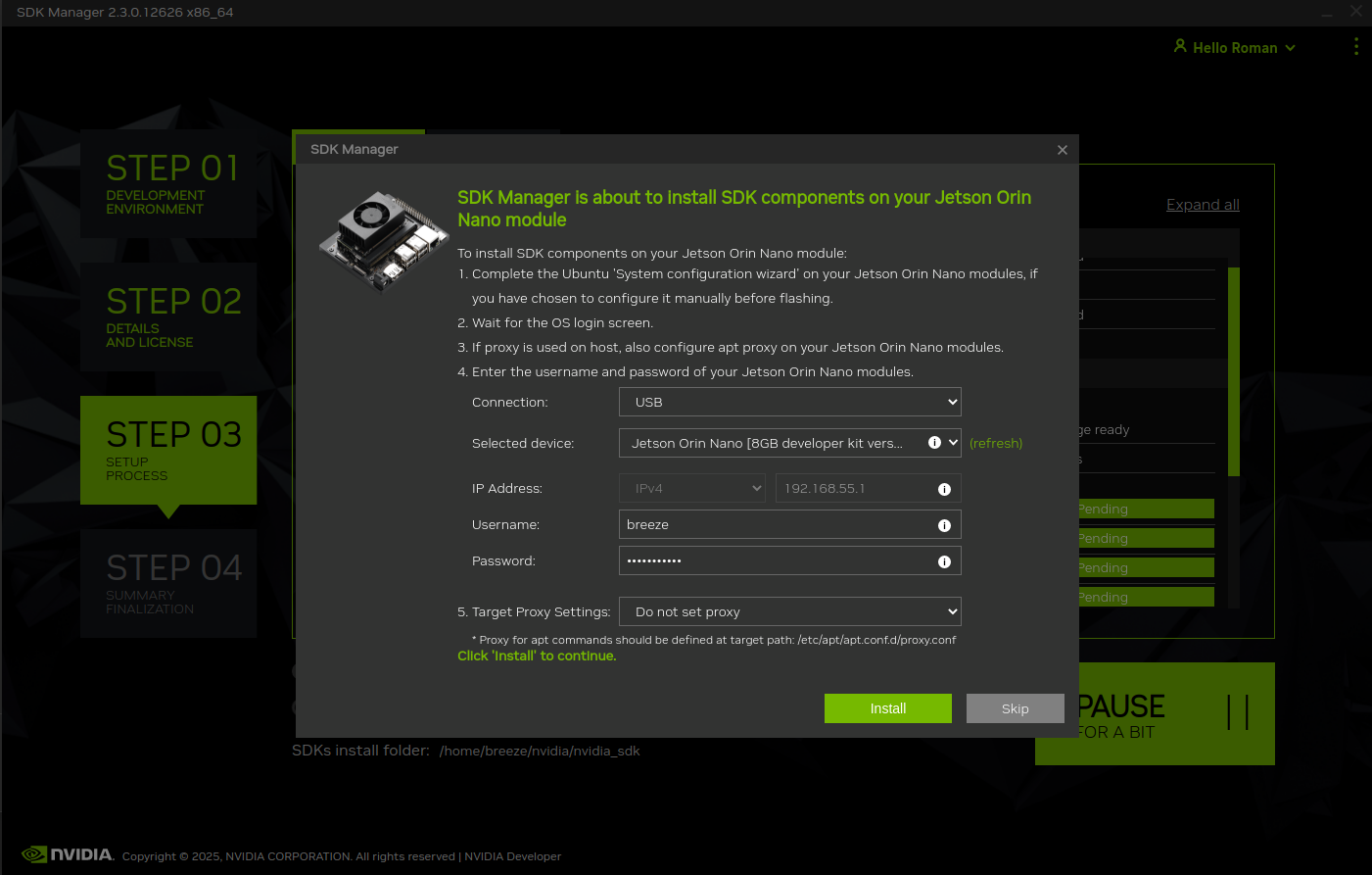
If get this error after pressing the Install:
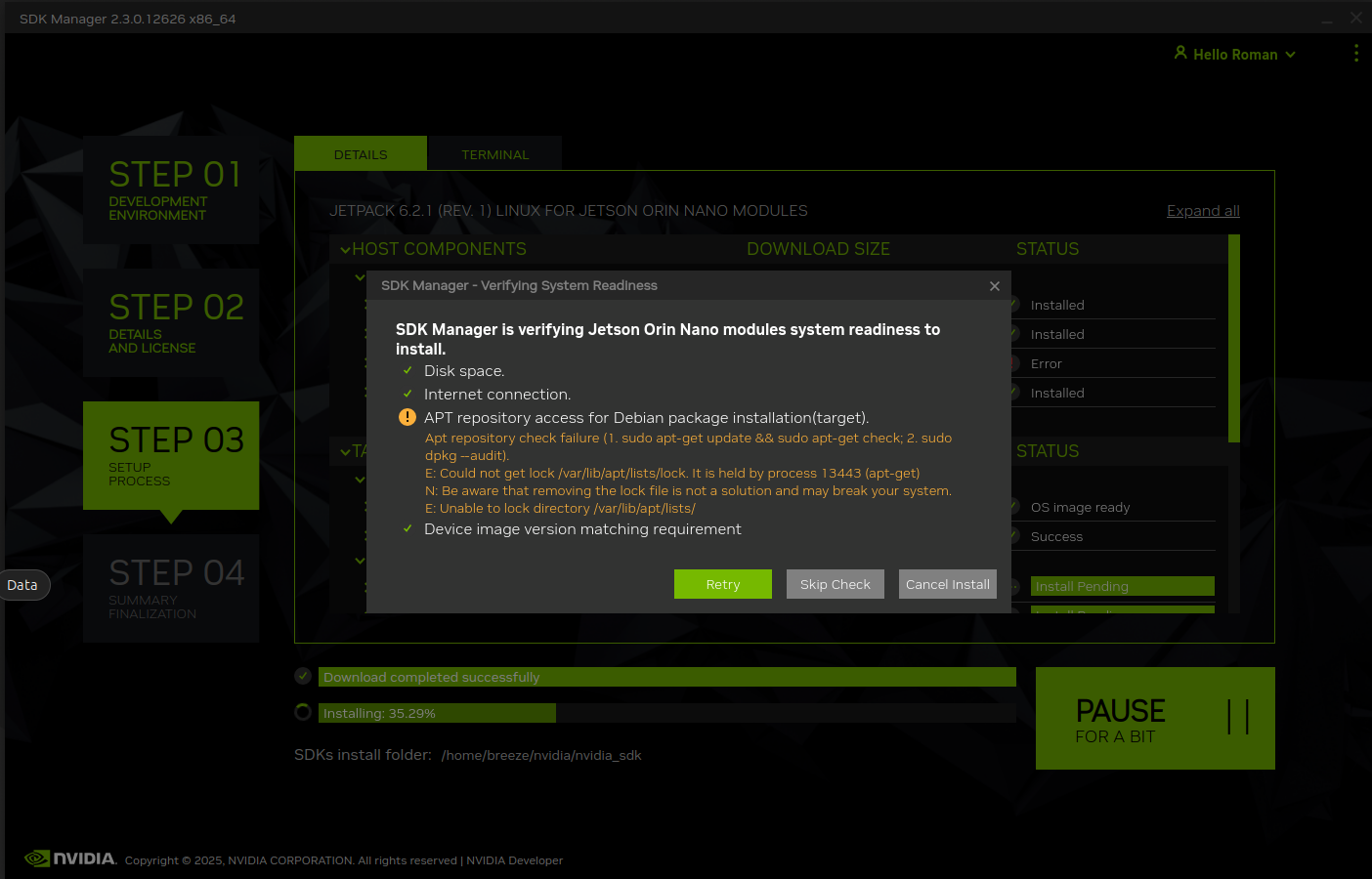
Try to log in to Ubuntu on Jetson Orin Nano. Pass through the Ubuntu wizard and connect the device to wifi. While there you can also enable Max Power mode for the device. Remove the jumper and then restart the device.
After that click on Install in the SDK Manager:
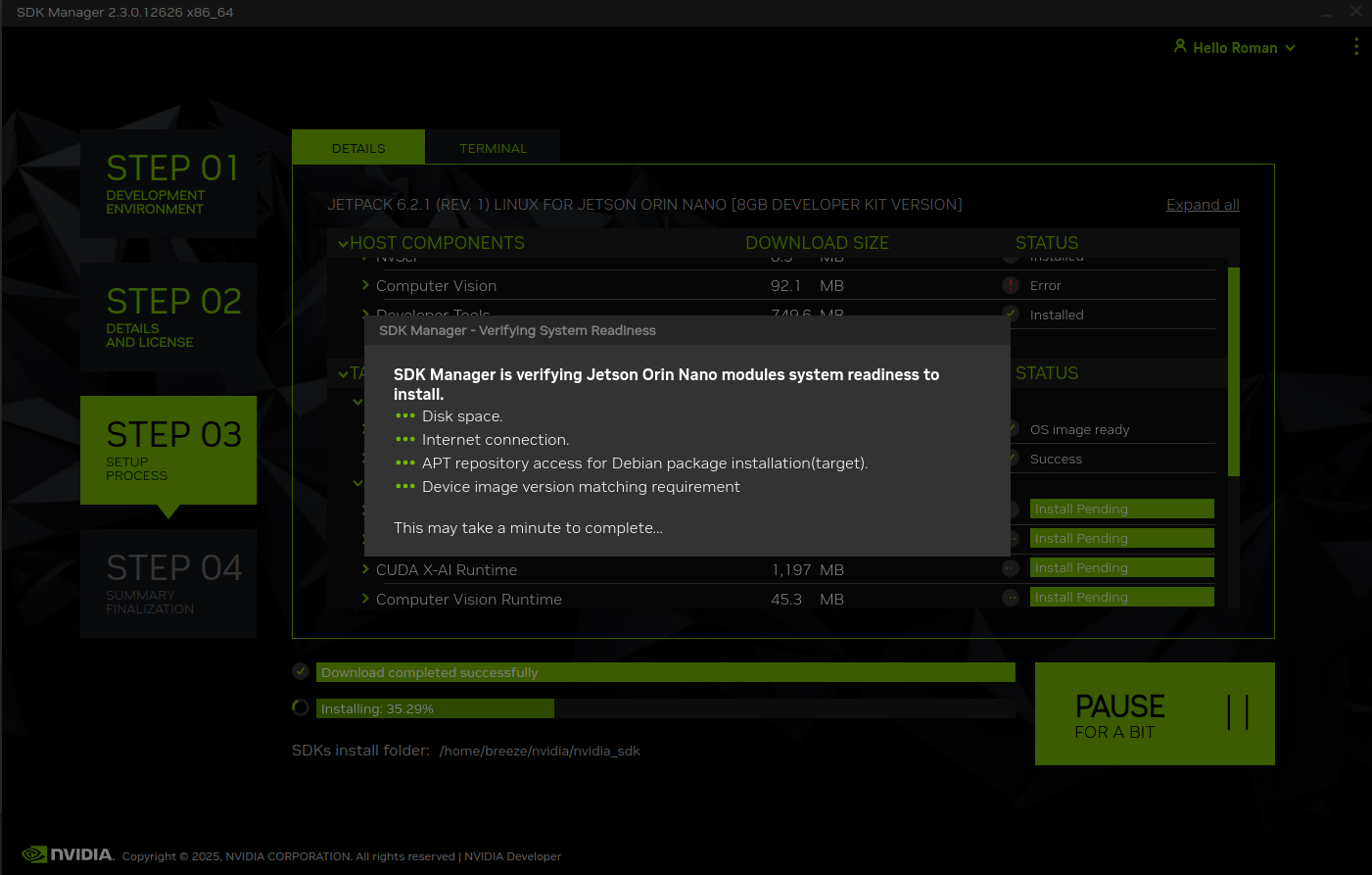
It takes another 30-40 mins to complete.
And finally:

Congratulations! You now have Jetson Orin Nano Dev Kit with NVMe ssd drive installed.